
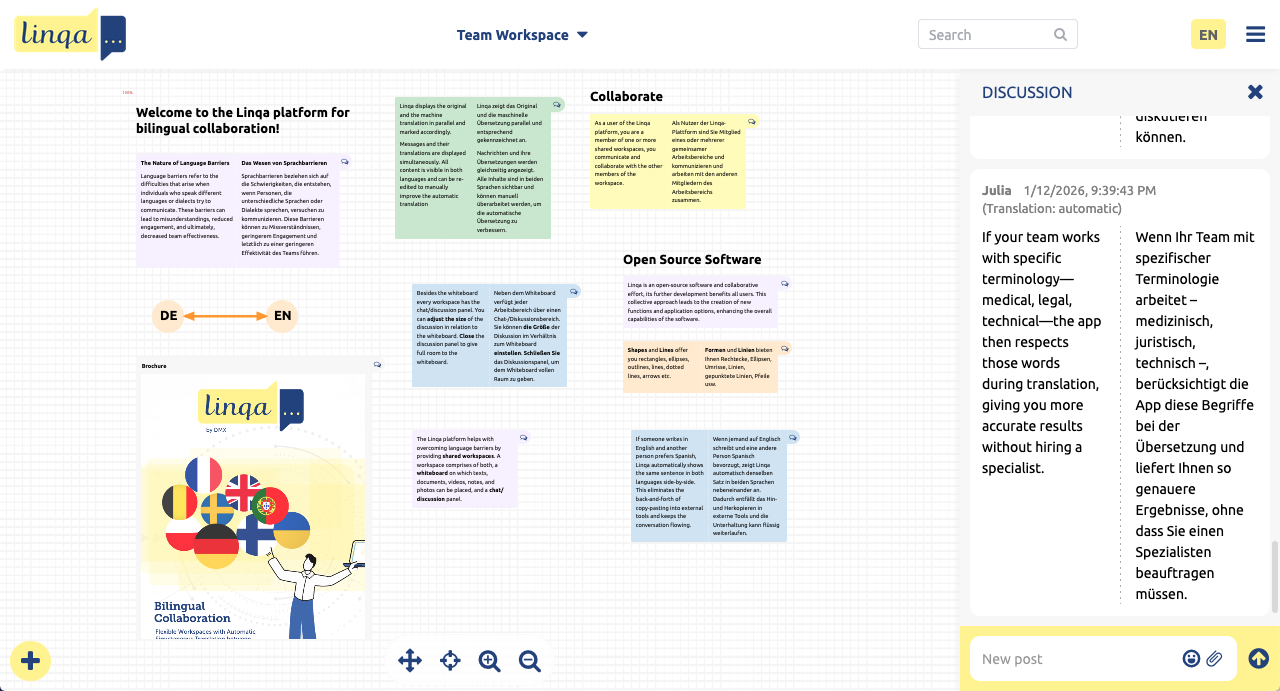
Creating an integrated whiteboard that brings different elements into one seamless environment is very easy with Linqa
The whiteboard offers an unlimited canvas, so you can arrange ideas without worrying about running out of space. To move around, simply drag the board with the mouse. Zooming is easy: use the mouse wheel (position the cursor over the area you want to enlarge first) or click the dedicated zoom buttons.
A search bar sits at the top of the interface; just type keywords to locate documents, notes, or video timestamps instantly, saving you the hassle of scrolling through endless content.
Interacting with documents is straightforward. Hover over a document and click the Download button that appears in the lower‑left corner to save a copy. For a more comfortable read, hit the Fullscreen button. If you want to discuss a particular item, press the speech‑bubble icon; the discussion pane slides out on the right side, keeping the conversation tied directly to the content.
To put new items on the whiteboard use the Add button at the lower/left corner. The Add button appears only if you’re an editor for the current workspace.
A Document represents a file (or 2 language-specific ones) and a name. You can upload text/image/audio/video/PDF files. It will appear on the whiteboard along with the name. Audio and video files are playable.
A Note is a more or less extensive text. It can be styled (bold, italic) and color marked. You can insert headlines, lists, web links, images, videos. On the whiteboard the text is displayed in the respective user’s preferred language
Textblocks are similar to notes, but on the whiteboard both language versions are displayed at the same time. Textblocks are useful when working collaboratively on a longer bilingual text/document.
Finally, you can create multiple workspaces—each with its own whiteboard, permission settings, and collection of files. This lets you keep separate projects or teams neatly compartmentalized while still enjoying the same integrated experience.
Practical Scenarios
Document Review
While reviewing a draft report, a reviewer can highlight a paragraph directly on the whiteboard and add a comment via the chat pane. The author sees the comment anchored to the exact text, replies in place, and no separate email chain is required.
Video Analysis
A marketing team streams a campaign video on the board. At the 00:45 timestamp, a teammate drops a chat note suggesting a subtitle tweak. Everyone can jump to that moment instantly, discuss, and apply the edit without scrubbing through the video repeatedly.
Image Collaboration
Designers upload mock‑up images and annotate specific sections. Comments appear beside each visual element, giving developers clear guidance on design intent—eliminating guesswork and reducing back‑and‑forth clarification.
Cross‑Team Brainstorming
Because the canvas isn’t limited in size, teams can spread ideas across multiple “zones”: market research, product specs, UI sketches, and timeline milestones—all visible at a glance. Zooming lets participants focus on a single zone while still retaining context.
Rapid Prototyping
Product managers can drop a quick wireframe image, attach a short explanatory video, and invite engineers to comment on functional requirements—all within the same board. The integrated discussion pane keeps feedback organized and searchable later.
Separate Project Spaces
When working on unrelated initiatives—say, a product launch and an internal policy review—you can spin up two distinct workspaces. Each workspace maintains its own set of documents, videos, and discussion threads, preventing accidental cross‑talk and keeping each team’s focus sharp
👉 Ready to experience the benefits? Sign up for a FREE trial and discover how Linqa can transform the way your team communicates.
Watch our “How to create a Productive Workspace” video on LinkedIn.